Video orientation · 3–30s
Start here when turning and body direction are part of the performance. The reference performer provides the orientation. This setting does not mean landscape video.
Kling 2.6 · Motion Control
Give your character a performance to follow. Upload a clear image and a short action reference, choose the orientation and resolution, then generate a new clip.
Start creatingWatch 8 video examplesPowered by Kling 2.6 Motion Control via KIE.
Upload a video to calculate credits.
Use images and performances you have permission to use. Duration rounds up to the next second. Failed jobs are refunded through your credit history.
Compare the performers and watch the timing of head, shoulder and arm movement.
8 public Kling 2.6 Motion Control demonstrations from KIE. These are provider showcases, not generations made on this site; results depend on your inputs. View source ↗
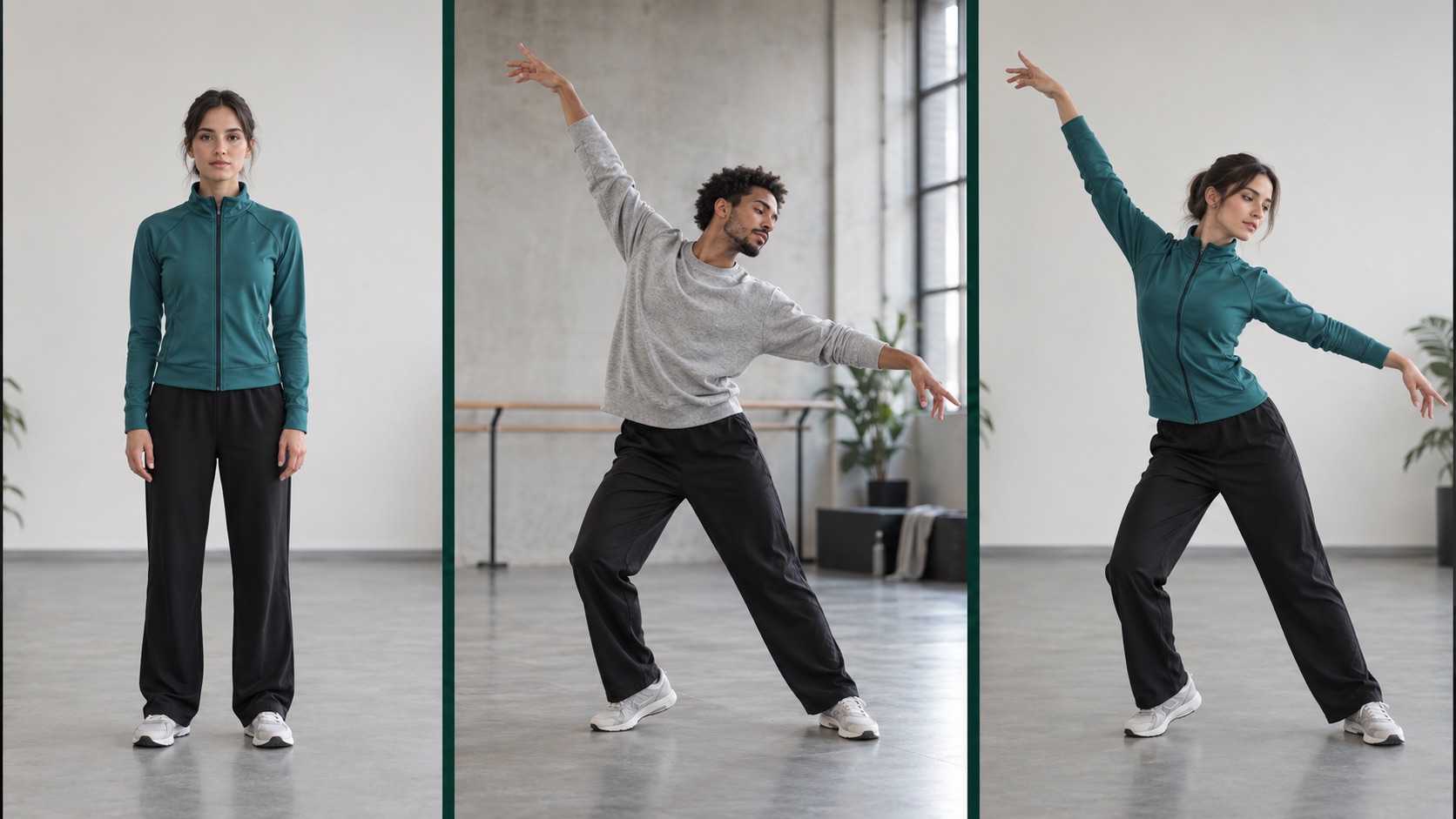
What do the character image and performance each provide?
AI editorial illustration, not a Kling generation. This explains the input relationship. Watch the 8 public KIE videos in the tool for actual motion demonstrations.
Assign a different job to each input: the image establishes appearance, the video demonstrates the performance, and the prompt supplies the setting. Use one clearly visible person and a continuous take. Match a waist-up reference with a waist-up image, or a full-body performance with an image that includes the feet.
| Input | Accepted on this page | Before uploading |
|---|---|---|
| Character image | JPG / PNG · ≤10MB · ≤6MP Both sides >300px; ratio 2:5–5:2 | Face, shoulders and torso are clear. Keep hands and feet visible when the action needs them. |
| Action video | MP4 / MOV · ≤20MB 3–30 seconds; image orientation ≤10s | One video track, steady framing and a complete action. Export standard video rather than fragmented streaming media. |
The limits above are enforced by this site. KIE documents its own upstream limits separately. If a reference is too large, shorten it before reducing visual quality; retain enough detail to see hands and feet. KIE model documentation ↗
Start here when turning and body direction are part of the performance. The reference performer provides the orientation. This setting does not mean landscape video.
Try this for a short performance when the character should follow the still image’s orientation. It does not guarantee a locked face or forbid turns. Trim longer footage before selecting it.
Use the lower-cost mode to evaluate motion and framing. Choose 1080p when delivery needs more detail and the inputs already work. Generating again is a new job, not an automatic upscale of the accepted take.
| Billable length | 720p | 1080p | Orientation available |
|---|---|---|---|
| 5s | 31 credits | 50 credits | Image / video |
| 10s | 61 credits | 99 credits | Image / video |
| 30s | 182 credits | 297 credits | Video only |
These examples use the same credit calculation as the generator. Uploaded duration rounds up: a 5.2-second reference is billed as 6 seconds. Three separate 5-second tests at 720p total 93 credits. Confirm the actual quote before submitting. Every new generation has its own cost.
Choose one small, inspectable performance for your first test. The following briefs are input plans and prompt suggestions, not claims that these exact scenes have been generated on this site.
01
Inputs: One humanoid mascot image and a 3–5 second wave.
Leave space between the arm and torso. Use motion control to test one wave, then trim the accepted take for an intro or outro.
Prompt to adaptKeep the red vest and round eyes. Follow the reference performance against a pale background with steady framing.
Review: Check for disappearing hands and distorted clothing marks. Add brand lettering in your editor.
02
Inputs: A full-body character image and one short sequence with feet visible throughout.
Keep the performer inside the frame. Review motion control timing, balance and foot contact at 720p before deciding on a higher-resolution take.
Prompt to adaptPreserve clothing and proportions. Show the full body in a simple rehearsal room and follow the reference dance.
Review: Inspect sliding feet and broken turns. Treat it as a movement study rather than precise dance instruction.
03
Inputs: A waist-up image and a 3–8 second open-hand or pointing performance.
Keep hands visible and avoid repeatedly covering the face. Align the accepted motion control gesture with separately recorded narration in the edit.
Prompt to adaptA presenter in a pale cardigan, soft frontal lighting and a plain background. Preserve the face and clothing while following the reference gesture.
Review: Review facial stability and fingers. Verify lip sync separately; correct gestures do not establish synchronized speech.
04
Inputs: A character design and an uninterrupted nod, pause or turn.
Test one emotional beat with motion control at a time. Note when the turn occurs and place accepted footage into a storyboard draft.
Prompt to adaptPreserve the character silhouette and clothing. Follow the reference performance in a quiet interior with a simple background.
Review: Compare the face, hair and shoulders before and after a turn. An attractive opening frame does not establish character consistency.
05
Inputs: One character image and a brief, readable surprise or celebration.
Complete one motion control reaction, then add captions, effects and a vertical crop in your editor. Avoid packing several beats into one generation.
Prompt to adaptThe character follows the reference celebration. Preserve appearance and clothing, leaving room above the head and around the arms.
Review: Inspect fast arm movements and frame edges. Confirm that your final crop retains the important action.
06
Inputs: One fixed reference and several similarly framed character images, uploaded one at a time.
Keep motion control reference, prompt and resolution fixed. Change only the image and compare each design at the same timestamps.
Prompt to adaptFollow the same reference performance. Preserve the current character design with simple, consistent lighting and background.
Review: Inspect unusual limbs and exaggerated proportions. This is a sequence of individual tests; the page has no batch or synchronized multi-person control.
For a wider project plan and audience choices, read the Kling 4.0 use-case guide. Keep the model choice separate from the project brief; this tool uses Kling 2.6 Motion Control.
Use four parts: identify the character, name what should stay consistent, describe one setting, and ask the character to follow the reference. Avoid describing a conflicting sequence. A prompt cannot recover hands that are hidden throughout the source, and this page has no separate negative-prompt field.
Character: a presenter in a pale cardigan.
Preserve: facial appearance, hairstyle and clothing from the image.
Setting: a quiet studio, soft frontal lighting, plain warm-gray background.
Performance: follow the gestures in the reference video; keep the subject fully inside the frame.
If the first result changes the setting too much, simplify the setting line and keep the same reference. If the movement breaks, fix the video rather than adding increasingly long instructions. For planning, shot review and finishing, see the Kling 4.0 workflow guide.
Check: Check size, actual duration, format and image dimensions.
Change: Trim and export a standard MP4. Convert images to JPG/PNG and compress video below 20MB.
Check: Check whether image orientation is selected.
Change: Use video orientation for up to 30 seconds, or trim to a 3–10 second performance.
Check: Check whether both inputs show the limbs and whether movement exits the frame.
Change: Use a similarly framed full-body image, reduce movement amplitude and occlusion, then test a short take.
Check: Find the first change and check for fast turns or a covered face.
Change: Try a slower, evenly lit reference. Change one input at a time and compare the same timestamp.
Check: Check whether the prompt adds several actions, settings and camera moves.
Change: Keep one simple setting and let the reference supply the action. Add captions and complex composites later.
Check: Check the job ID and video history to establish the existing task state.
Change: Recover the existing job. Use “Retry same request” after an unconfirmed submission instead of creating another paid task.
Check: Separate image sharpness from incorrect poses or contact.
Change: Improve the inputs and performance first. Higher resolution does not automatically repair extra fingers or sliding feet.
Use motion control when the important information is a recorded gesture, dance or body direction. Prepare the two required assets and test a short, readable action first.
Start with general image-to-video or text-to-video. Describe the scene and movement there; an empty action reference cannot be replaced with a camera prompt on this page.
Plan individual shots, select the suitable model for each and assemble the accepted clips. This tool does not supply a timeline, keyframe editor or multi-shot campaign assembly.
For text or a still image, start with the general video generator. Compare reference-driven and longer-scene planning in Kling O3 vs Kling 4.0, or browse the tool index.
This tool uses the actual Kling 2.6 Motion Control endpoint through KIE. It is separate from the site’s general video generator and is not labelled as Kling 4.0.
The quote is calculated from the uploaded video, rounded up to a whole second, and your selected resolution. For example, 5 seconds costs 31 site credits at 720p or 50 at 1080p. The displayed total is shown before you generate.
No. Image orientation supports a maximum of 10 seconds. Choose video orientation for references over 10 and up to 30 seconds, or trim the clip first.
No. This workflow transfers a subject’s performance from a video. A pan, dolly or zoom prompt describes camera movement and does not replace the required reference video.
No exact-match guarantee is made. Occlusion, fast turns, unusual anatomy and mismatched framing can cause errors. Inspect the full result before publishing.
Failed generation jobs use the site’s existing credit-refund flow. A connection problem is not proof of failure: keep the job ID and check its status before starting another paid job.
This page requires one character image and one reference video. Text or a still image alone cannot be submitted here. Use the general video generator on the home page when you have no recorded performance.
Check this site’s 20MB limit, the 3–30 second duration and MP4/MOV format. The file must contain one complete video track. Fragmented, damaged or inconsistent timing metadata can fail validation; export a standard MP4 from your editor.
Use a JPG or PNG no larger than 10MB and 6 megapixels. Both dimensions must exceed 300px, and the aspect ratio must fall between 2:5 and 5:2. A clear subject with complete limbs and framing close to the video matters more than simply increasing pixel count.
This page has no voiceover, sound-effects, audio-toggle or independent camera-path controls. The prompt describes the character and setting. Add precise narration, captions and camera edits in your editing workflow.
No. The preview tabs only switch the right-hand content. Your inputs, prompt and job remain, and an active job continues to be checked. Selecting another example or leaving the examples tab stops the current example playback.
Changing the image, performance and prompt together makes it difficult to identify what helped. Keep the same short reference and change one input at a time. Raise resolution after the motion works, rather than treating resolution as a repair for missing limbs.
Prepare a character image and a short reference. Check orientation, duration and credits, then generate and review the complete clip.
Create a motion transferWatch video examples